Your camera broadcasts a different network depending on which mode it is in, so the Wi-Fi list on your iPad tells you exactly what state it is in. Turn the camera on, look at the list, and find your case below. If you want the full picture of the three modes first, read How Athlee Wi-Fi Works.
Step 1: Turn on your camera and wait 60 seconds
Power the camera on and give it a full 60 seconds to boot and bring its Wi-Fi up. Checking sooner might show you an incomplete list.
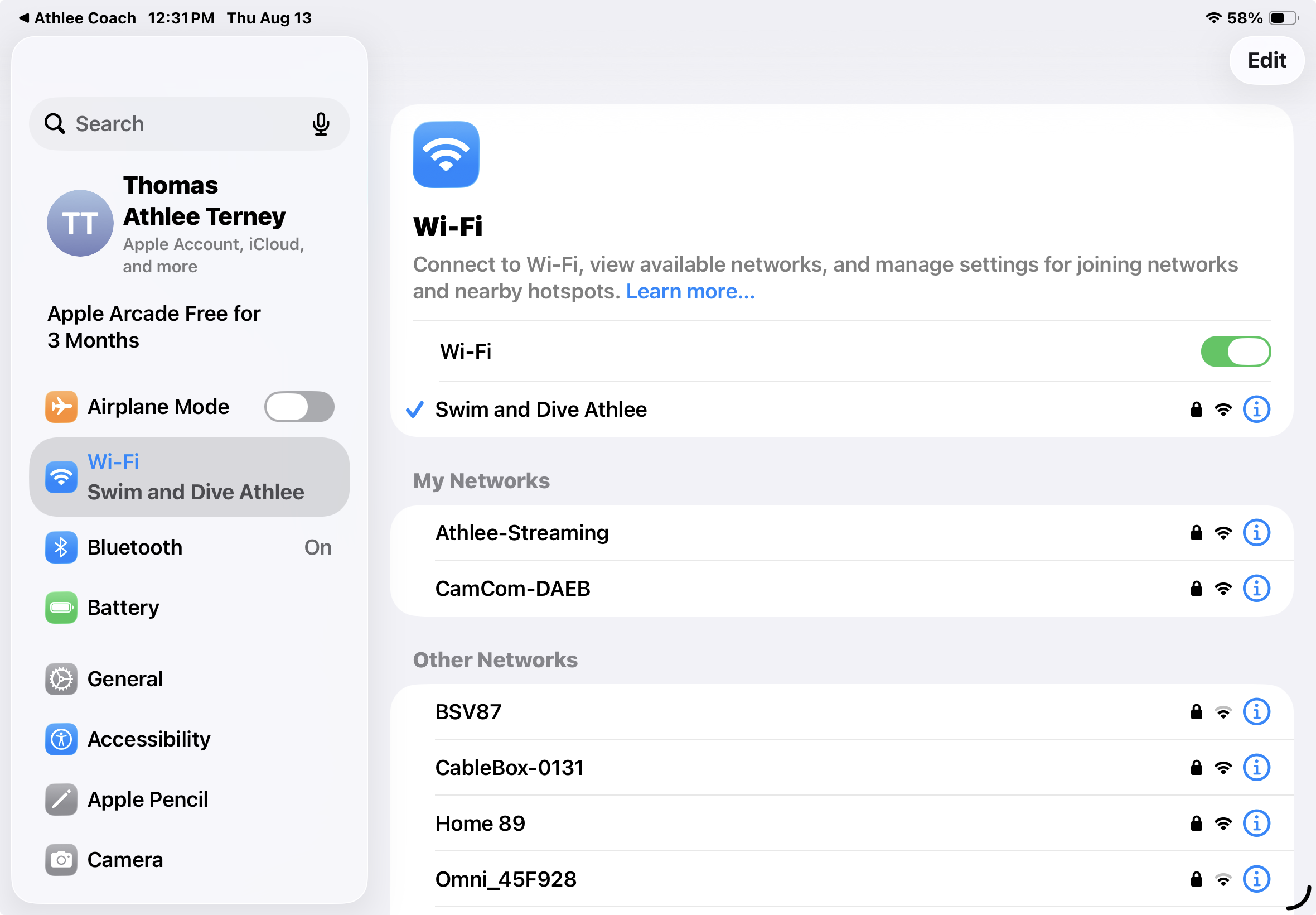
Step 2: Open your iPad's Wi-Fi list
On your iPad, open Settings → Wi-Fi and look at every network in the list, not only the name you were expecting. One of these four will match:
- An
Athlee-XXXXnetwork (where XXXX is unique to your camera): your camera has been reset. Athlee-Streaming, or a network name your club has set: your camera is broadcasting normally.- Only
CamCom-XXXX, with no Athlee network: your camera has joined your pool Wi-Fi. - No Athlee network and no
CamCom-XXXX: your camera's Wi-Fi is not coming up.
You will see CamCom-XXXX alongside the Athlee network in most of these cases. It is used for communication between cameras, so never connect your iPad to it. Always connect to the Athlee network.
If you see Athlee-XXXX: your camera has been reset
This is the most common cause. A hard reset does it, and so does a firmware update. It is expected behaviour, not a fault.
Connect to Athlee-XXXX with the password 12345678, then open Athlee Coach. Your camera will appear and you can stream straight away.
Two things to know afterwards:
- The network name and password you had set are gone. To set them again, see How to Configure Your Camera's Wi-Fi.
- If this camera was connected to your pool Wi-Fi, it is not any more. To put it back, see How to Connect Your Cameras to Pool Wi-Fi.
If you have several cameras, each one that has been reset broadcasts its own Athlee-XXXX network, and they will not find each other until they are set up again.
If you see Athlee-Streaming or your club's own network name
Your camera is broadcasting normally and this is the network to connect to. Out of the box it is Athlee-Streaming with the password 12345678. If someone at your club renamed the network, use the password they set.
If nobody remembers that password, you can reset the camera and set a new name and password yourself: How to Configure Your Camera's Wi-Fi.
Once you are connected, open Athlee Coach and your camera will appear.
If you only see CamCom-XXXX: your camera is on your pool Wi-Fi
Your camera has joined your facility's router and stopped broadcasting its own network, which is how Pool Wi-Fi Mode is meant to work. Connect your iPad to that same pool network and open Athlee Coach.
If you did not know the camera was set up this way, someone at your club configured it. For the full setup, see How to Connect Your Cameras to Pool Wi-Fi.
If your iPad is on the pool network and the camera still does not appear in Athlee Coach, reset the camera. That takes it off the pool Wi-Fi and puts it back on its own Athlee-XXXX network with the password 12345678, so you can connect to it directly again:
- Hold the power button for 15 seconds until the LED blinks. Full instructions: How to Reset Your Athlee Camera.
- Wait a couple of minutes, then check your iPad's Wi-Fi list again.
Athlee-XXXXshould now be there. - Connect with
12345678and open Athlee Coach.
Once you are streaming again, add the pool network back with How to Connect Your Cameras to Pool Wi-Fi.
If you see no networks at all
With no Athlee network and no CamCom-XXXX in the list, your camera's Wi-Fi is not coming up. Check the camera is charged and switched on, and check the list on a second device in case the problem is your iPad.
If there is still nothing, this indicates a fault with the camera, and a reset will not fix it. Get in touch on WhatsApp or at support@athlee.com and we will arrange a repair. Wi-Fi module failures are covered, including return shipping.
Still not sure? Send us a picture
Take a screenshot or a photo of your iPad's Wi-Fi list 60 seconds after turning the camera on, and send it to us on WhatsApp or at support@athlee.com. It is the first thing we ask for, and it usually tells us straight away what your camera is doing.
Related: How Athlee Wi-Fi Works · How to Configure Your Camera's Wi-Fi · How to Connect Your Cameras to Pool Wi-Fi